
EZ Photo Jewelry Resizer Software Help
EZ Photo Resizer Software Tutorial

Go to the upper right corner of the program, and select the size for the paper that you will be using (4x6 or 8x11).

Click "Select Image To Crop" from the upper left hand side of the program.

A window displaying the files on your computer will pop up. Select from your computer the first image that you wish to crop and resize. Once you select your image, click the "Add Image" button.

The "New Image Setup" window will appear. Select the shape that you wish to resize to, and then enter the photo size for your item. You can find this size on your invoice next to the item number, or on our website next to the item number on the product page. Note: If you select square or circle, the width (W) box will become grayed out since the height and width dimensions are the same for these shapes. Once you have made your selections, click "add image".

This will open the image into the program under the orange and yellow crop tool. Click and drag one of the orange circles to adjust your crop area until your desired area is within the yellow circle. Click "Crop" in the upper left corner to crop the photo. * If you need to adjust your crop, just click "Crop Tool" on the bottom left side at any time to make the cropper reappear. If you wish to make the cropped image black and white or antiqued, click "greyscale" or "antique" under the Color Tools section on the left. If not, skip this step.

Once you are finished cropping your image, click the green "Add Image To Program" button. This will add your cropped image to the blank "Images To Print" window on the right side. Click the green button again to add more copies of the image.


Alternatively, once you have added an image to the right side, you can also right click it to display more options for filling the sheet. These options include "duplicate image", "fill row", "fill page", and "delete". If you want to add a variety of images, go back and complete the first few steps again until your page is full with your desired shapes and images.

If you add more images than will fit onto the page, an "Image doesn't fit" error will pop up and let you know how much space is left.

When you have added all of the images desired, click the green "Finish Create File For Printing" button in the bottom right corner. A window will pop up prompting you to save the file. Click yes to all prompts to open your finished PDF file.
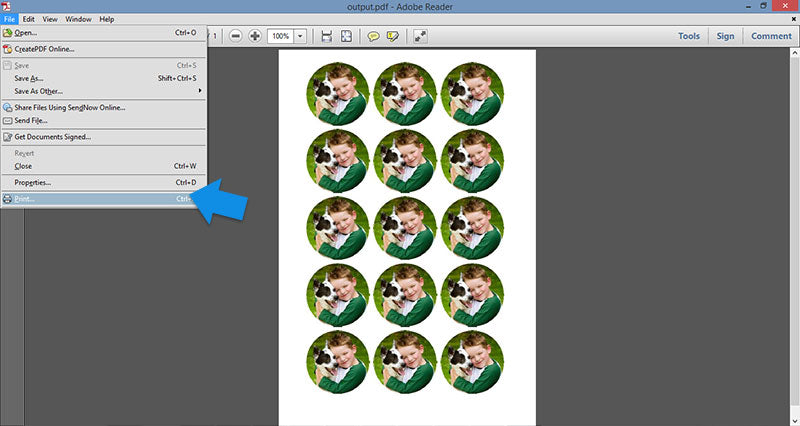
Once your file opens in the Adobe reader, go to "File > Print" in the toolbar. Make sure that your printer settings are set to the same paper size that you set on the EZ Photo Resizer Software, then click "Print". Your photos will print out. Now you can start making your photo jewelry!